
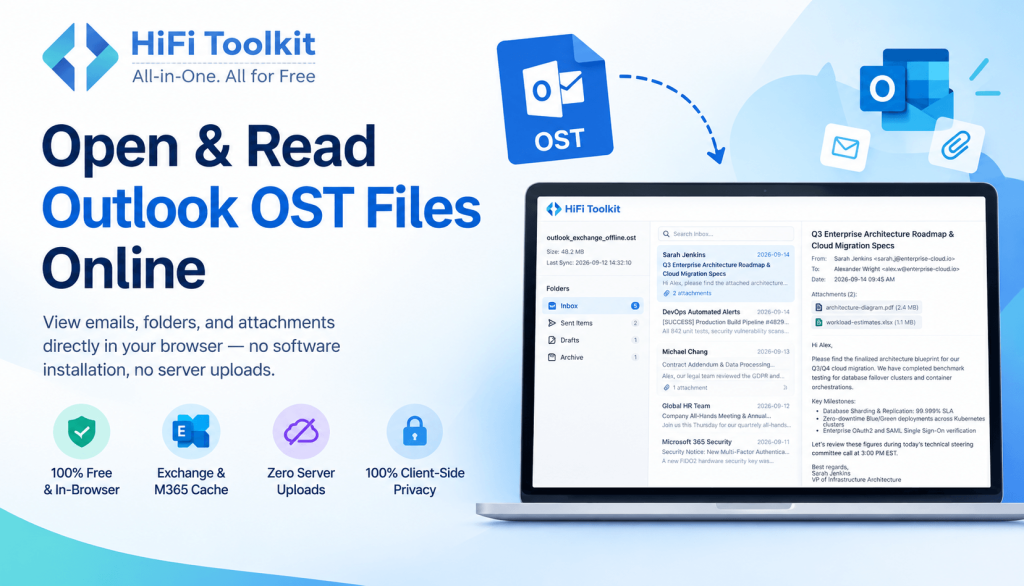
Accessing an Outlook OST file can prove challenging, especially after losing the original Outlook profile or the Exchange account from where you received the file. The OST (Offline Storage Table) file format is meant to function as the offline cache of an Outlook mailbox. Therefore, an OST file may not be easily opened compared to other document files, like PDF, CSV, or HTML.
An OST Viewer offers the opportunity of viewing an OST file right inside your web browser. The functionalities of an OST Viewer allow you to view and navigate through the folders within the mailbox, read email messages, search among stored emails, and view attachments. This process does not require downloading a conventional software program onto your computer.
In this guide, we will discuss how to use an OST Viewer, how to find an OST file on Windows, how to open an OST file, how to browse through emails and folders, and what to keep in mind regarding the privacy and OST files.
Learn More – how to use OST viewer
What Is an OST File?
OST means Offline Storage Table. Microsoft Outlook makes use of OST files in order to provide a locally synchronized copy of mailbox contents when a mailbox is configured in cached mode.
In case Outlook interacts with an Exchange or Microsoft 365 mailbox, there is an option to store locally cached mailbox content so that a user could access data that was previously synchronized even in case of lack of an internet connection.
An OST file may contain information such as:
- Emails and email bodies
- Inbox messages
- Sent Items
- Drafts
- Folder structures
- Calendar information
- Contacts
- Cached mailbox data
- Email attachments
- Other Outlook mailbox properties
The specific data available will depend on the setup of your Outlook account and the OST file.
The difference from the PST file is that the OST file is related to the specific Outlook account and profile that created it. It is one of the reasons why getting access to your old OST file may be difficult.
Why Use an OST Viewer?
There are some cases when you might need to view an OST file.
In other words, you may have an outdated Outlook, a backup copy of Windows, a locked mailbox cache file, or an OST file from a computer that is not anymore linked to the Exchange Server.
An OST Viewer will assist you in checking your available mailbox data without setting up an entire Outlook environment.
Another handy option will be the use of a browser-based viewer, which means that you will be able to run the program via your modern browser.
How to Use an OST Viewer
Typically, when using an online OST Viewer, there are several simple steps that need to be performed.
Step 1: Find the OST File
The first step requires identifying the OST file on your Windows machine.
For most Outlook configurations, the cached Outlook data is located at a place like:
%LOCALAPPDATA%\Microsoft\Outlook\
This location can easily be opened via Windows Run.
Click:
Windows Key + R
Type in:
%LOCALAPPDATA%\Microsoft\Outlook
Click Enter.
Windows will open the directory if it exists. Search for files ending in .ost.
For example:
outlook_exchange_offline.ost
Depending on your Outlook configuration.
Step 2: Open the OST Viewer
Having found your OST file, now open the OST viewer on your browser.
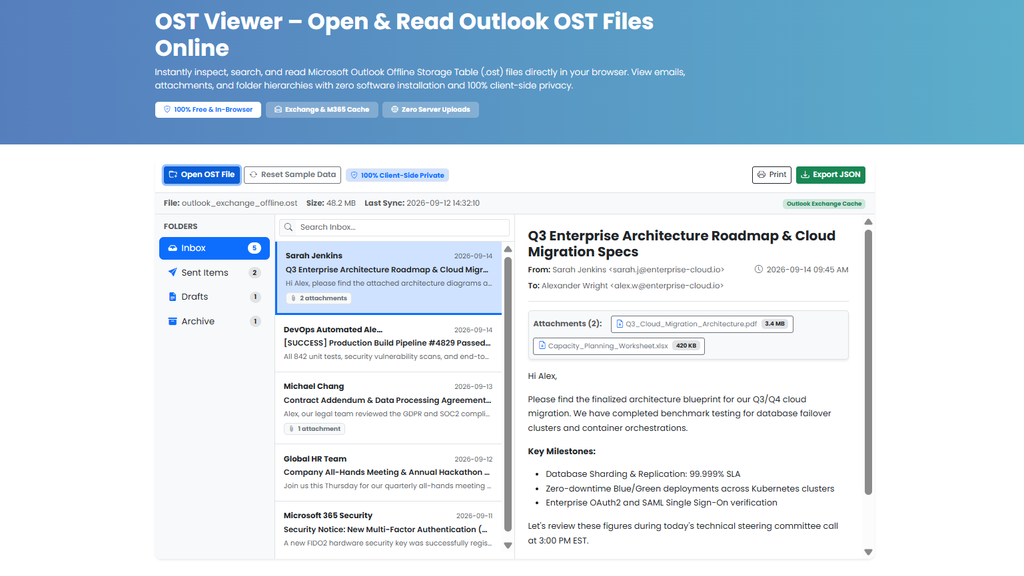
Find the ‘Open OST File’ feature of the application.
Choose the .ost file from your system.
Some applications also allow drag and drop functionality, which will enable you to drag your OST file in the browser window.
Step 3: Allow the File to Be Processed
Processing will depend on the size and internal structure of the OST file.
The larger the file, the more emails, folders, and attachments it can have, hence processing can take different periods of time.
The use of the viewer does not require transferring the entire archive of mailboxes to another server but only processing of the selected file in the browser environment.
When working with large OST files, it is recommended not to switch the tab or close the page until it is processed completely by the browser.
Step 4: Browse the Folder Structure
After successful processing of the file, you will be able to browse through the folders available in the mailbox.
Example folders in an Outlook mailbox include:
- Inbox
- Sent Items
- Drafts
- Archive
- Deleted Items
- Custom folders
The viewer is capable of displaying the folder hierarchy in a panel of navigation.
Click on any folder to view its corresponding messages.
It becomes easier to browse through an old mailbox without having to look into the OST file manually.
Step 5: Read an Email
In order to view the email, select the message from the mailbox listing.
The mail viewer can show information such as:
- Sender
- Recipient
- Date and Time
- Subject
- Email body
- Attachments
For instance, the selection of an email having the subject “Q3 Enterprise Architecture Roadmap & Cloud Migration Specs” would show the full body of the message with all the attachments included.
This will help you view a particular email kept in the outdated Outlook cache.
Step 6: Search for Specific Emails
Should there be many messages inside the OST file, then manually checking each of the folders could be quite time-consuming.
To find a certain message, use the search box of the viewer.
Depending on the search capabilities of the software, one might be able to search using such terms as:
Sender name
Subject of the email
Keywords
Body of the message
So, if you are searching for an email that says “contract”, just insert the keyword in the search field.
This can significantly facilitate the search of a certain email message within a large mailbox.
Step 7: View Email Attachments
There will always be emails which will have files attached as documents, spreadsheets, presentations, images, or pdfs.
When an email has some attachment(s), then the viewer can view attachment details along with the email.
The email should be selected and then attachments should be checked.
Based on the viewer capabilities, the attachment details can either be viewed or exported.
One must be extremely careful while dealing with attachments, especially if the emails are coming from an unknown/untrusted mailbox.
Step 8: Review Different Mailbox Folders
Navigation between various folders is one of the handy functions provided by OST Viewer software.
For instance, you may browse from Inbox to Sent Items to Drafts or Archive without any necessity to re-open the OST file.
It offers a mail box-type folder browsing.
Such an approach may be helpful in investigating older email conversation where necessary message might be moved out of the Inbox folder.
Step 9: Export or Print Information
Certain OST Viewer utilities offer some extra features, including the possibility to Print or Export to JSON.
In case such feature is provided, Print might prove useful when a printed or PDF version of an email message is required.
Exporting could come in handy when email information in structured format should be exported for further use.
Depending on the specific OST Viewer application, different formats and fields are available for exporting.
Is It Safe to Open an OST File Online?
The matter of privacy is one of the aspects to consider when working with Outlook mailbox files.
OST files include confidential corporate correspondence, messages, contracts, customers’ data, attachments, etc.
When using any web-based viewer, you have to make sure how the service works with the uploaded files.
Client-side OST Viewer means that the selected file will be processed directly on the client side, i.e., the data from the mailbox won’t be uploaded to the remote server.
In case of the client-side version, the browser is able to load the selected file locally and process the content.
Nevertheless, you should make sure of the privacy features of the particular viewer.
Comparison Between OST Viewer and Microsoft Outlook
Microsoft Outlook and OST Viewer have quite distinct uses.
Outlook is a full-fledged email application, which works with mail servers, synchronizes accounts, sends and receives messages, and works with mailbox contents.
OST Viewer, on the other hand, is mostly used for analyzing contents of OST files.
When you want to restore connections, synchronize messages, send email or work with a live mailbox, you will need either Outlook or another appropriate mail application.
However, when you just want to analyze contents of an OST file, it might be worth using a viewer.
OST and PST: What Are the Differences Between Them?
While OST and PST are Outlook formats, they have their own uses.
The OST file is often used as a local cache related to the Outlook profile and mailbox settings.
The PST format, in its turn, is used in case you need a portable version of the data in your Outlook profile, archiving, backing up, etc.
These differences matter a lot in case of picking the file viewer.
The PST viewer is meant for viewing the PST files only; the OST viewer is specifically designed for OST files processing.
Make sure you know what file you are opening.
OST Viewer Tips
Here are some tips that you should consider for your convenience:
Use the Latest Web Browser Version
Always use the latest version of a modern web browser like Chrome, Edge, Firefox, or any other compatible browser.
Verify File Extension
It is necessary that the file you want to open is a real Outlook OST file having the .ost file extension.
Be Patient with Large Files
It might take time to process the large OST file since the browser needs time to scan and analyze the inner structure of the file.
Do Not Close or Refresh the Browser
Never refresh or close the browser tab until the processing gets completed.
Be Cautious with Sensitive Information
Before using the viewer, always check the privacy policy of the application if your OST has any confidential data.
Keep the Backup
Do not overwrite the original OST just because you could open it. Always keep an original copy of your file when the data is critical.
