Git Tutorial
- Curriculum Overview
- 1. Introduction to Git & VCS
- 2. Installation & Configuration
- 3. Git Architecture & Concepts
- 4. Basic Workflow (add/commit)
- 5. Git Log & History
- 6. Branching Basics
- 7. Merging & Conflict Resolution
- 8. Git Rebasing
- 9. Undoing Changes
- 10. Working with Remotes
- 11. Git Stashing
- 12. Git Tagging
- 13. Git Ignore & Attributes
- 14. Advanced Git Tools
- 15. Best Practices & Workflows
6. Branching Basics
Branching is one of Git's absolute superpower features. While branching in old version control systems is a heavy, slow, and expensive process, Git branches are incredibly lightweight, fast, and created almost instantaneously.
What is a Branch?
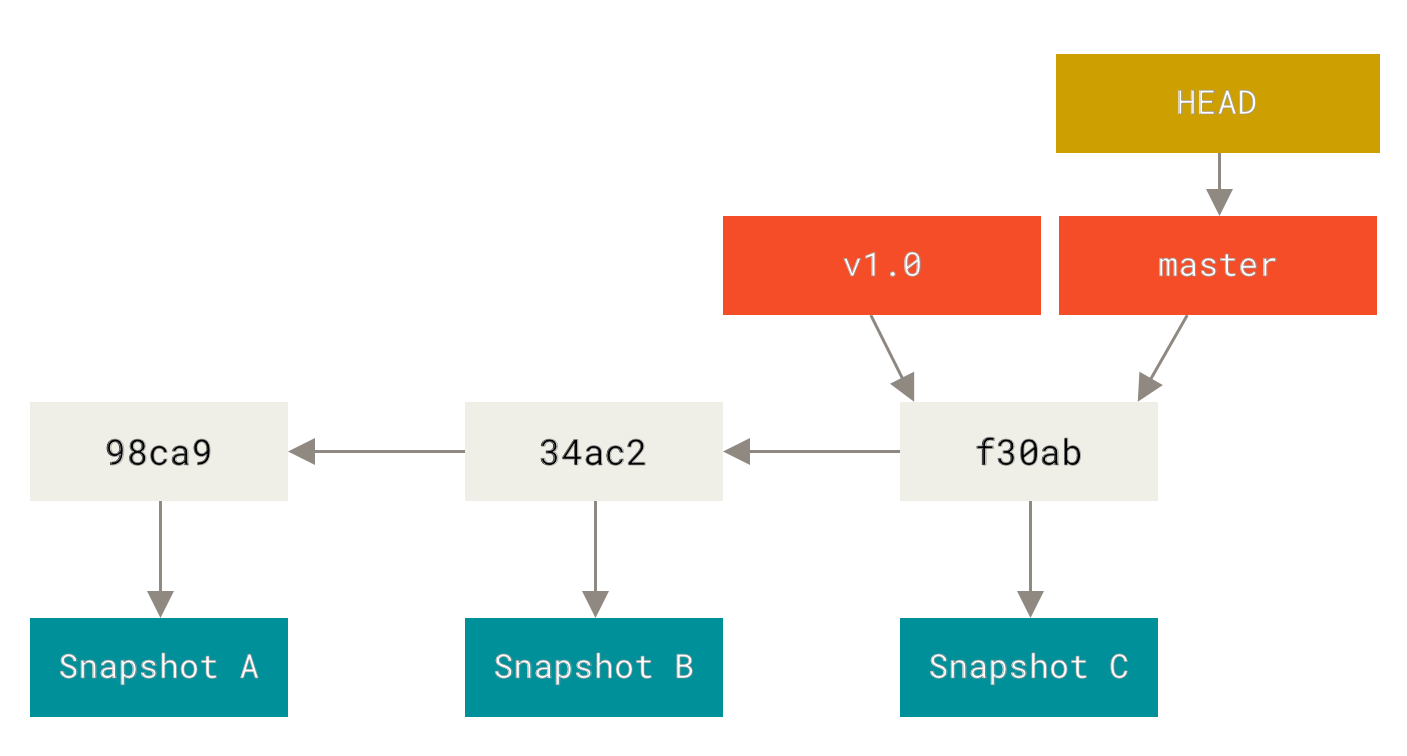
A branch in Git is simply a **lightweight, movable pointer** to a specific commit. When you initialize a repository, the default branch is usually named main (or master). As you make commits on that branch, the pointer automatically moves forward to point to your latest commit.
Why use Branches?
Branches allow you to diverge from the main line of development to work on new features, fix bugs, or experiment without affecting the stable, production-ready codebase. Multiple developers can work on separate branches concurrently without stepping on each other's toes.
Core Branching Commands
1. Creating a Branch: git branch
To create a new branch at your current commit point without switching to it, type:
git branch feature/user-profile2. Listing Branches
To see a list of all local branches in your repository, run:
git branchThis lists your local branches, highlighting your current branch with an asterisk (*) and in a different color. To list both local and remote-tracking branches, use:
git branch -a3. Switching Branches: git switch or git checkout
To change your current working directory branch, use git switch (which was introduced in modern Git 2.23+ specifically for switching):
git switch feature/user-profileAlternatively, you can use the older git checkout command to switch:
git checkout feature/user-profile4. Create and Switch in One Command
A highly common shortcut is to create a new branch and immediately jump onto it in a single command:
# Modern Method
git switch -c feature/shopping-cart

# Older Method
git checkout -b feature/shopping-cart
5. Deleting a Branch
Once a feature branch is successfully merged into your main branch, it is best practice to clean up and delete it:
# Safely delete a branch (will fail if the branch has unmerged work)
git branch -d feature/shopping-cart

# Force delete a branch (even if it contains unmerged work)
git branch -D feature/shopping-cartmain) before deleting it.What is HEAD?
In Git, HEAD is a special pointer that tells Git which branch or commit you are currently standing on. Think of it as the "You Are Here" icon on a directory map. When you switch branches, Git automatically updates HEAD to point to the new active branch.
Explore Related Tools
Hand-picked utilities and calculators related to this tool.

