Git Tutorial
- Curriculum Overview
- 1. Introduction to Git & VCS
- 2. Installation & Configuration
- 3. Git Architecture & Concepts
- 4. Basic Workflow (add/commit)
- 5. Git Log & History
- 6. Branching Basics
- 7. Merging & Conflict Resolution
- 8. Git Rebasing
- 9. Undoing Changes
- 10. Working with Remotes
- 11. Git Stashing
- 12. Git Tagging
- 13. Git Ignore & Attributes
- 14. Advanced Git Tools
- 15. Best Practices & Workflows
7. Merging & Conflict Resolution
After working in isolation on a feature branch, the time comes to bring those changes back into your main branch. This process is called Merging. In this chapter, we will learn how merging works, study its types, and see how to confidently resolve the dreaded **Merge Conflicts**.
Basic Merging
To merge changes from a feature branch into a target branch (like main), you must follow a two-step sequence:
- Switch to your target branch:
git switch main - Run the merge command specifying the branch to pull in:
git merge feature/user-profile
Types of Merges
Git uses two primary strategies for merging, depending on the commit history structure:
1. Fast-Forward Merges
If the target branch (main) has *not* diverged since you created the feature branch, Git simply slides the main pointer forward to point to the latest commit on the feature branch. No new commit is created; Git just updates the pointer.
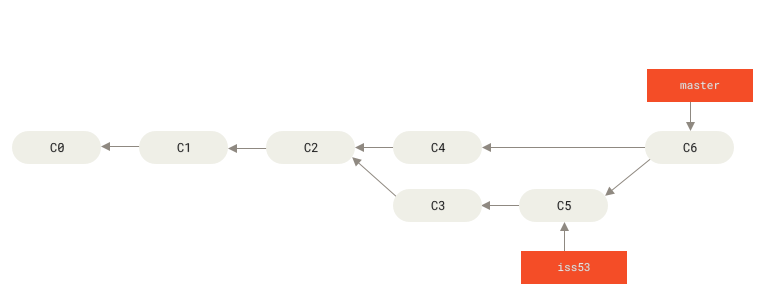
2. Three-Way Merges (Recursive/Ort)
If main has received other commits while you worked on your feature branch, the history has diverged. To merge them, Git finds the **Common Ancestor** of both branches and performs a three-way merge. Git automatically creates a special **Merge Commit** with two parent commits to tie the histories together.
Understanding Merge Conflicts
Sometimes, Git cannot merge changes automatically. If two branches modify the **exact same line** of the **same file** in different ways, or if one branch deletes a file that another is modifying, Git gets confused and halts the merge. This is a Merge Conflict.
How conflicts look in your files
When a conflict occurs, Git pauses the merge and places special **conflict markers** inside the affected files:
<<<<<<< HEAD
<h1>Welcome to Our Premium Site</h1>
=======
<h1>Welcome to the Git Tutorial Hub</h1>
>>>>>>> feature/branding
Let's dissect these markers:
<<<<<<< HEAD: Indicates the beginning of the changes on your *current* active branch.=======: The divider separating the two conflicting versions.>>>>>>> feature/branding: Indicates the end of the conflicting changes on the branch you are *merging in*.
How to Resolve Conflicts
To finish the merge, follow these steps:
- Open the conflicting file in your editor (VS Code will highlight conflicts in nice colors with buttons like "Accept Current Change" or "Accept Incoming Change").
- Delete the conflict markers (
<<<<<<< HEAD,=======,>>>>>>>). - Edit the file content so it looks exactly the way you want it (you can choose one of the options or combine them).
- Save the file.
- Stage the resolved file and commit:
git add index.html
git commit -m "Resolve merge conflict in index.html index page header"
Aborting a Merge
If you get overwhelmed and want to undo the merge completely and return your files to their exact pre-merge state, run:
git merge --abortExplore Related Tools
Hand-picked utilities and calculators related to this tool.

