Git Tutorial
- Curriculum Overview
- 1. Introduction to Git & VCS
- 2. Installation & Configuration
- 3. Git Architecture & Concepts
- 4. Basic Workflow (add/commit)
- 5. Git Log & History
- 6. Branching Basics
- 7. Merging & Conflict Resolution
- 8. Git Rebasing
- 9. Undoing Changes
- 10. Working with Remotes
- 11. Git Stashing
- 12. Git Tagging
- 13. Git Ignore & Attributes
- 14. Advanced Git Tools
- 15. Best Practices & Workflows
8. Git Rebasing
In addition to merging, there is another way to integrate changes from one branch into another: Rebasing. While merging ties histories together with a new merge commit, rebasing **rewrites history** to create a clean, linear sequence. In this chapter, we will learn how rebasing works, compare Merge vs. Rebase, and explore the highly powerful **Interactive Rebase**.
What is Rebasing?
Rebasing is the process of moving or combining a sequence of commits to a new base commit. Under the hood, Git does this by creating temporary files of your commits, resetting your branch pointer, and then applying the commits one by one onto the target branch's latest commit.
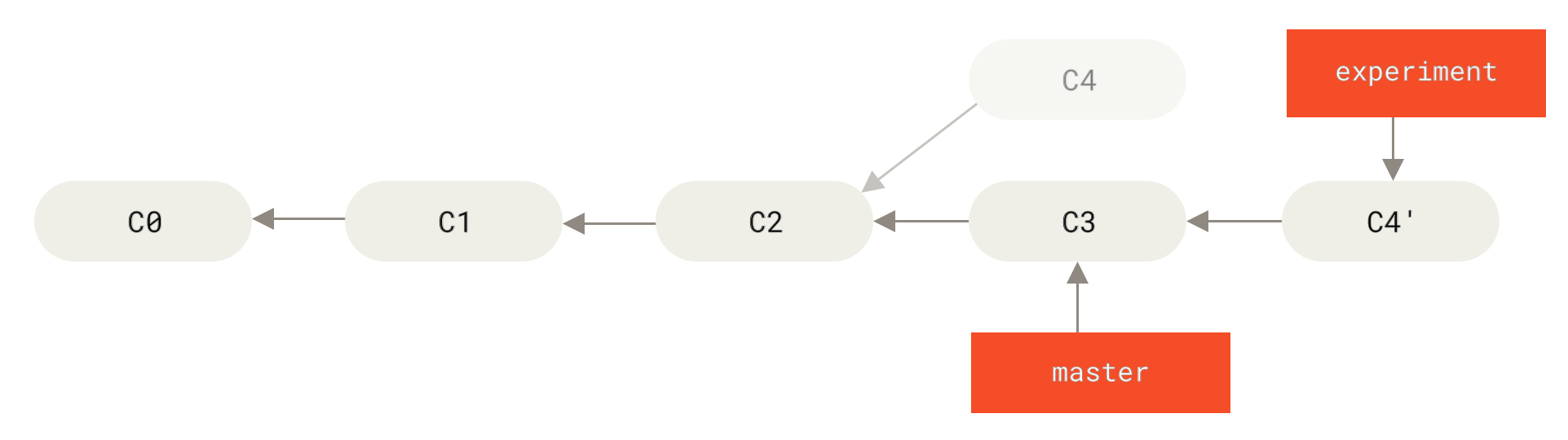
To rebase your current branch (e.g., feature/login) onto a target branch (e.g., main), run:
git switch feature/login
git rebase main
This makes it look as though you began writing your feature directly on top of the latest commits in the main branch, resulting in a perfectly straight, linear commit history!
Merge vs. Rebase
| Aspect | Merging (git merge) | Rebasing (git rebase) |
|---|---|---|
| History | Preserves the exact history of *when* branches branched off and joined. | Rewrites the history to look clean, linear, and simple. |
| Merge Commits | Creates a dedicated "Merge Commit". | Does not create any merge commits. |
| Complexity | Safer, non-destructive (never modifies existing commits). | Can be dangerous; rewrites commit hashes (changes identity). |
| Golden Rule | Use freely anywhere. | NEVER rebase branches that have been pushed to a public/shared repo! |
The Golden Rule of Rebasing
Because rebasing rewrites commit hashes, if you rebase commits that other team members have pulled and are working on top of, you will create serious sync problems.Only rebase local, unpushed branches to clean up your own personal history before pushing!
Interactive Rebasing: git rebase -i
Interactive rebasing is one of Git's most incredible features. It opens an interactive text editor list of your recent commits and allows you to edit, squash, reorder, or delete them before making them public.
To run an interactive rebase for the last 4 commits on your current branch, run:
git rebase -i HEAD~4Git will open a file in your editor listing the commits from oldest to newest:
pick a8f1b2c Add initial login form
pick 2b3d9e4 Fix styling padding typo
pick f3e4d5c Add error message checks
pick 9c8b7a1 Refactor login handler
Available Interactive Commands
You can change the word pick at the beginning of any line to change how Git treats that commit:
- pick (p): Use the commit as-is.
- reword (r): Use the commit but change its commit message.
- edit (e): Pause the rebase at this commit to modify files (amend).
- squash (s): Merge this commit's changes into the *previous* commit, combining their commit messages into one.
- drop (d): Delete the commit entirely!
Explore Related Tools
Hand-picked utilities and calculators related to this tool.

